Claude Usage Reticle
A pace tracker for
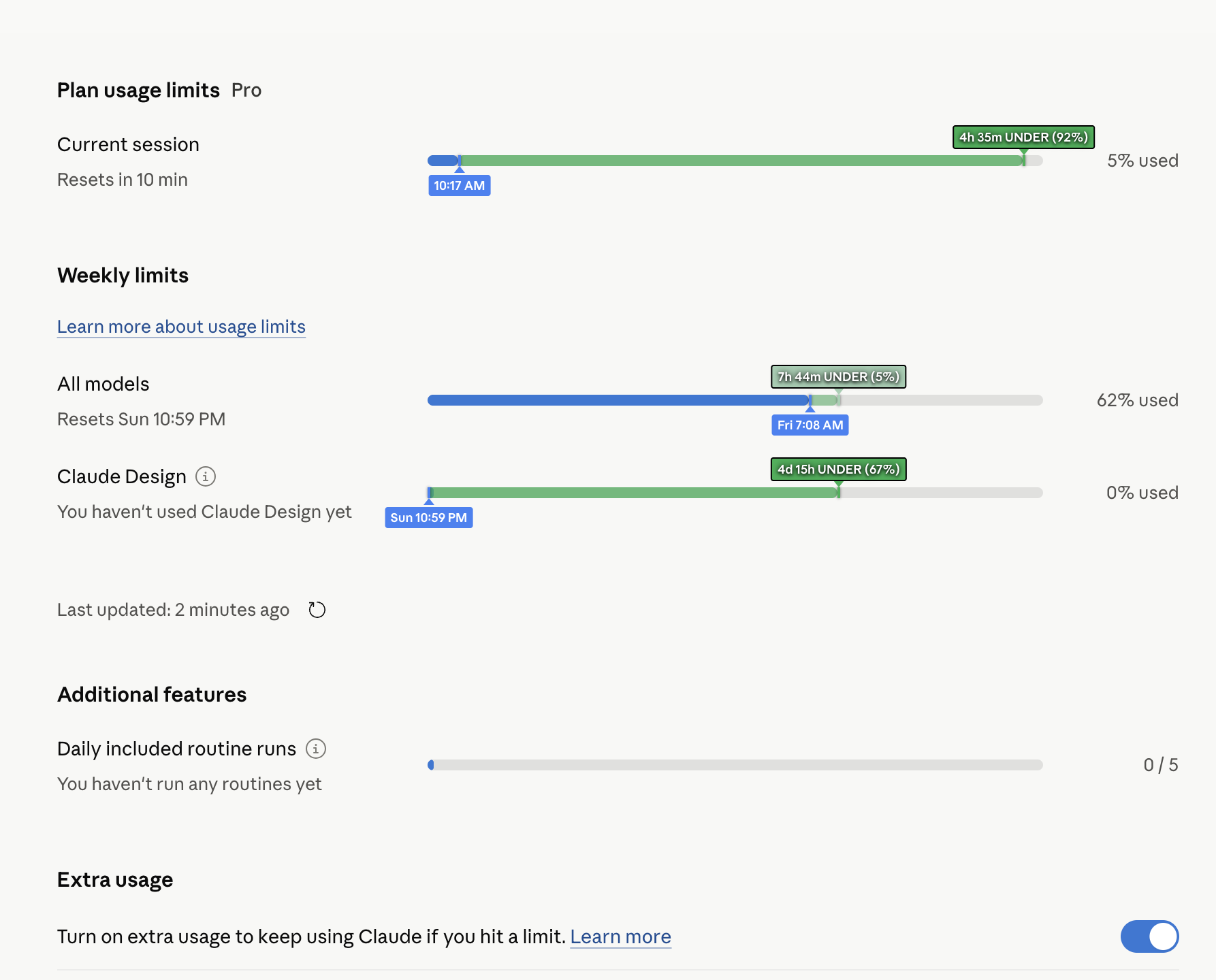
claude.ai/settings/usage that shows whether your usage is ahead of or behind an even-spend path through the current reset window.Install Options
Chrome Extension
Recommended
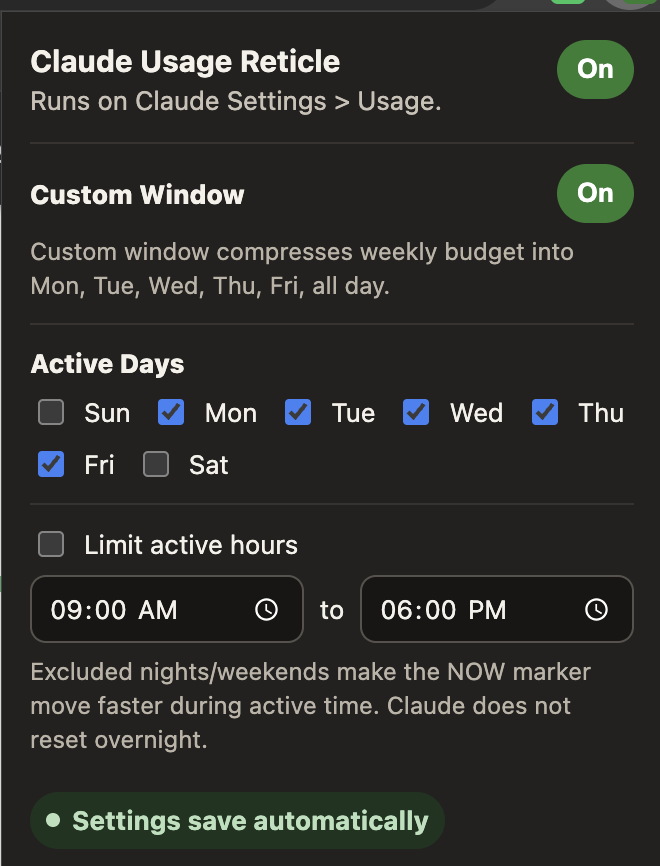
Auto-runs on Claude Usage with no script manager required. Settings live in the extension popup.
- Download ZIP and unzip it.
- Open
chrome://extensions, enable Developer mode. - Click Load unpacked and select the
extensionfolder.
Chrome/Edge/Brave: use Developer mode -> Load unpacked.
Firefox: use
Firefox: use
about:debugging -> Load Temporary Add-on.
Tampermonkey
Auto-runs
Auto-runs every time you visit the page using a script manager.
- Install Tampermonkey.
- Enable "Allow User Scripts" in extension settings.
- Install the script via Greasy Fork or Raw File.
Chrome v138+: Manage Extension -> Enable "Allow User Scripts".
Older: Enable Developer Mode in
Older: Enable Developer Mode in
chrome://extensions.
Bookmarklet
No Extension
Click once whenever you want the overlay. Good for locked-down browsers.
Drag this button to your bookmarks bar or copy it into a new bookmark, then click it on Claude Usage.
What You See
How to read it
- Blue marker marks your actual usage position.
- Green label means you are under the expected pace.
- Red label means you are over the expected pace.
- Color intensity scales with how far off you are.
Notes
- Updates on page changes, focus, and visibility changes.
- Works with the session bar and weekly model bars.
- Skips fixed-count bars such as Daily included routine runs.
- Bookmarklet uses a small one-click injector with no settings panel.
- The extension popup controls custom budget-window settings.